

Hi! 👋
Meet GradeImp, a free Chrome extension for moving grades from Excel or Sheets into an assignment that already exists in Google Classroom.
The idea came about because the add-ons I knew for importing grades, such as ImExClass, by Jaume Feliu, create a new assignment every time. I wanted to be able to choose which assignment they go into.
When I decide to set a test in a subject, I create it as an assignment in Classroom so that students can see it on their calendar. Afterwards, I wanted to be able to enter the grades in that same assignment, without having to create a new one.
It’s fairly intuitive, so you probably won’t need instructions, but here is a step-by-step guide.
1. Features
With GradeImp you can:
- Import grades into the assignment you have open, without creating a new one.
- Paste your whole spreadsheet, with several sets of grades, and choose which one to import.
- Match each grade to the student by name, even if the order is different or a surname is missing.
- Keep new grades as drafts, so you can review them before returning them.
- Get a warning before changing a grade that has already been returned.
- See the assignment’s grades and copy them to a spreadsheet.
- Clear an assignment’s grades with a single button.
It works in Catalan, Spanish and English, depending on Classroom’s language.
2. How it works
2.1. Paste the grades
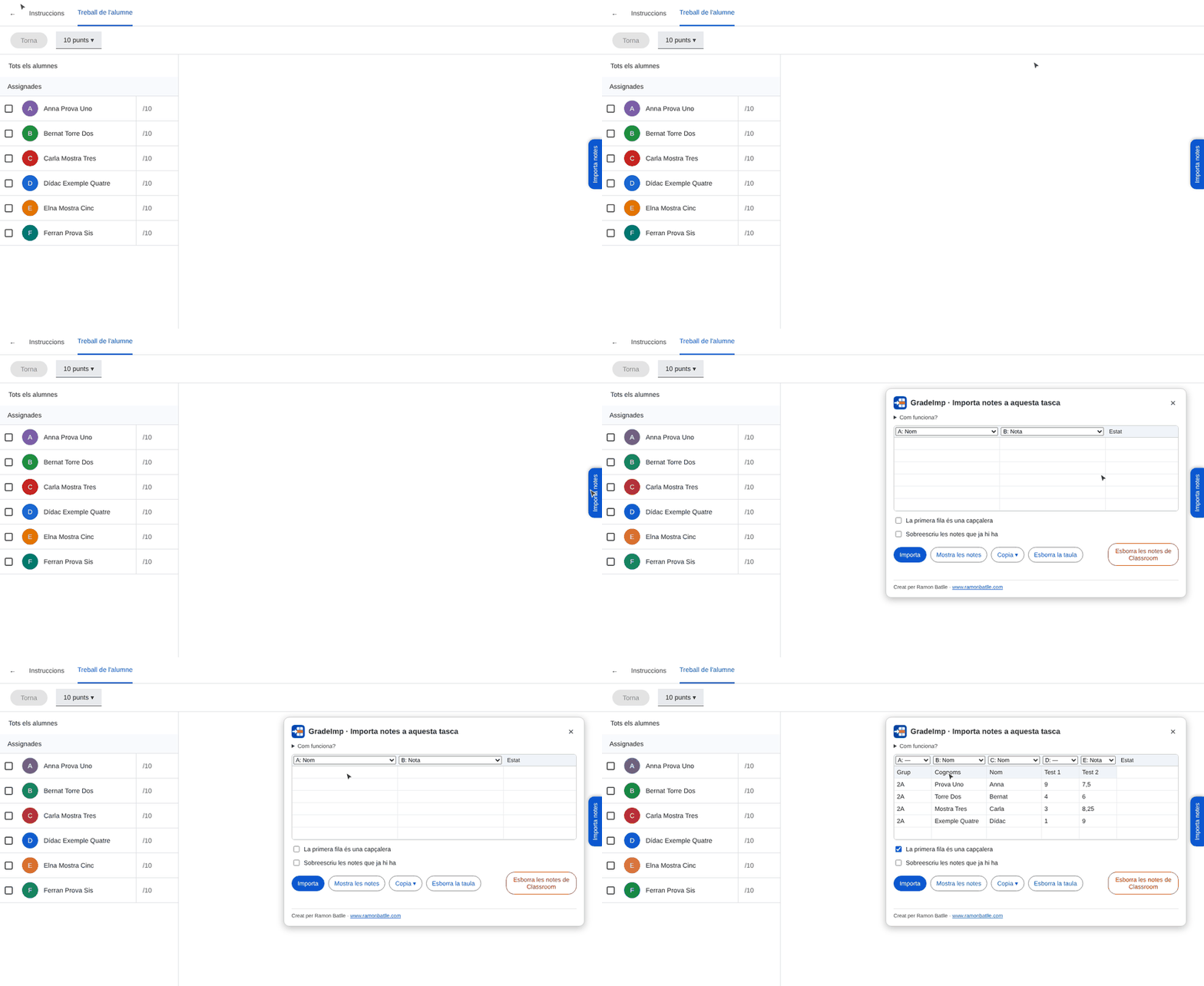
Open the assignment in Classroom and go to Student work. On the right of the page you’ll see the Import grades tab.
Copy the cells from your spreadsheet and paste them into the table.
The extension recognises which columns contain the name and the grade, even if they aren’t next to each other. If it gets them wrong, you can change them with the dropdowns above each column.
2.2. Choose which grades to import
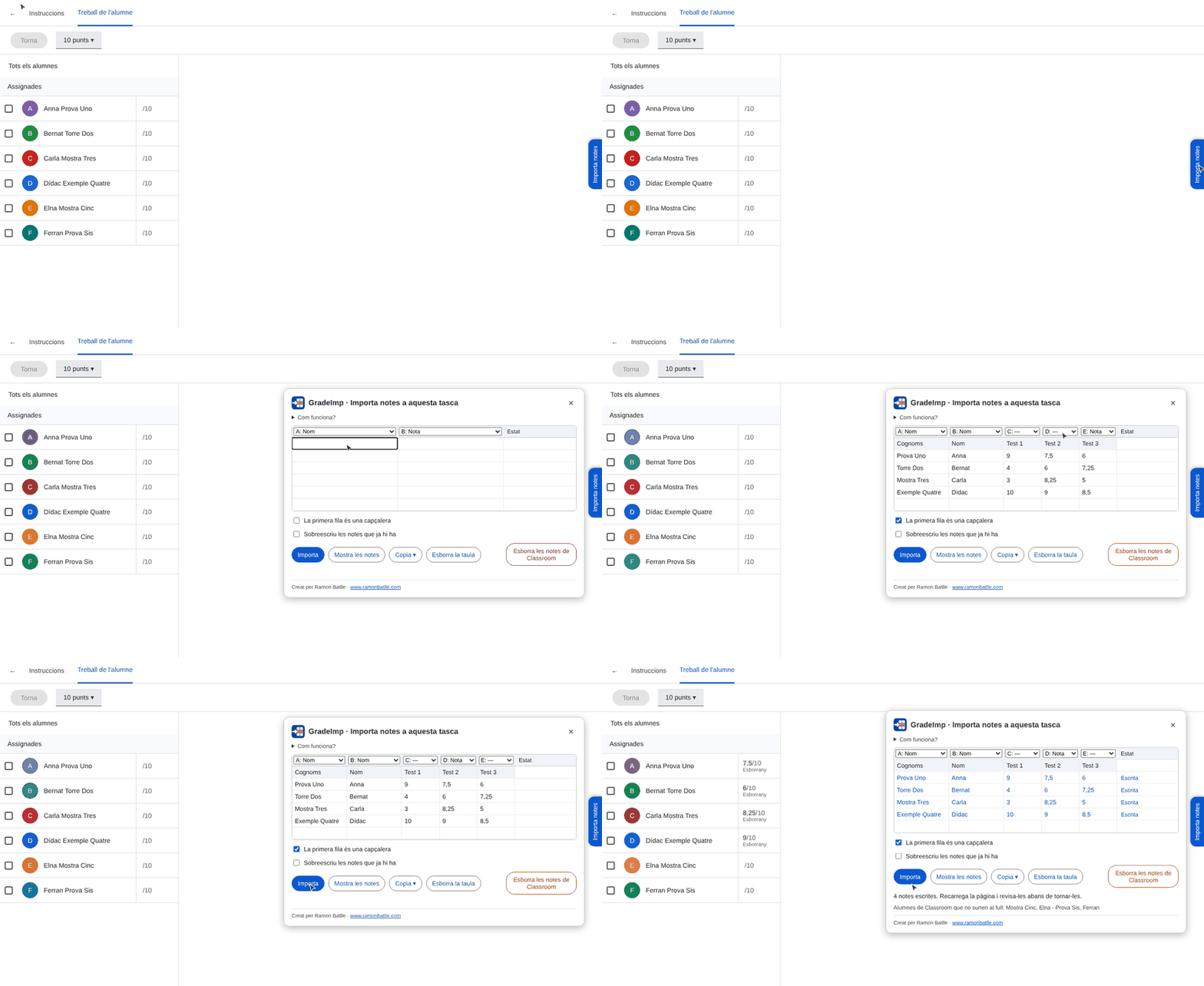
If your sheet has one column per test, there’s no need to separate them: paste them all.
By default, the last one is imported. To import a different one, choose Grade in the dropdown above its column.
This way you can keep using the same sheet and import each test into its own assignment.
2.3. Import
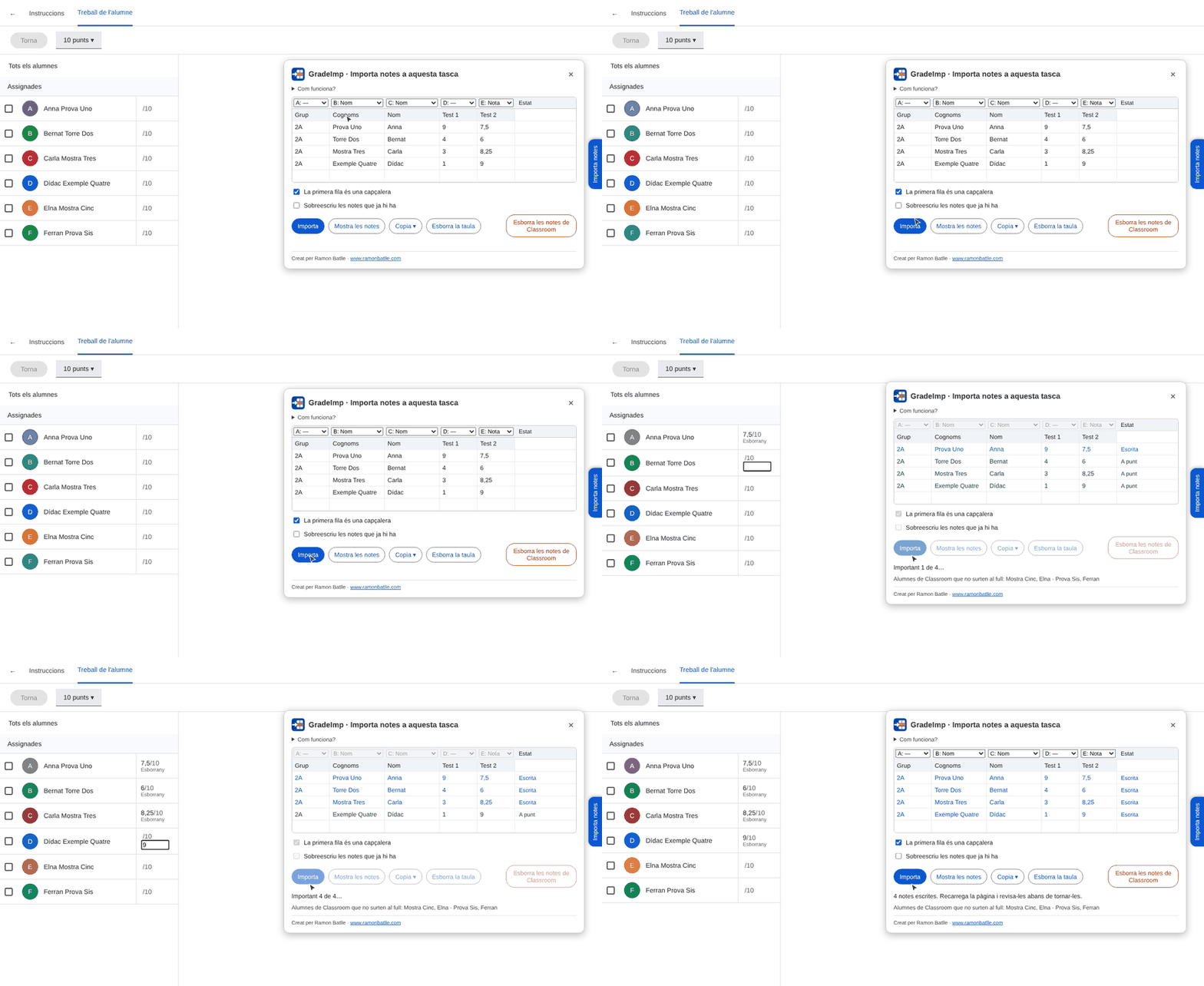
Press Import. The grades are entered one after another, and the Status column shows what happened with each row.
The grades stay as drafts, so students can’t see them yet. Review them and return them from Classroom as usual.
Existing grades only change if you tick Overwrite existing grades. If any have already been returned, it warns you before doing anything.
Your grades are now in the assignment! 🎉
2.4. If a surname is missing
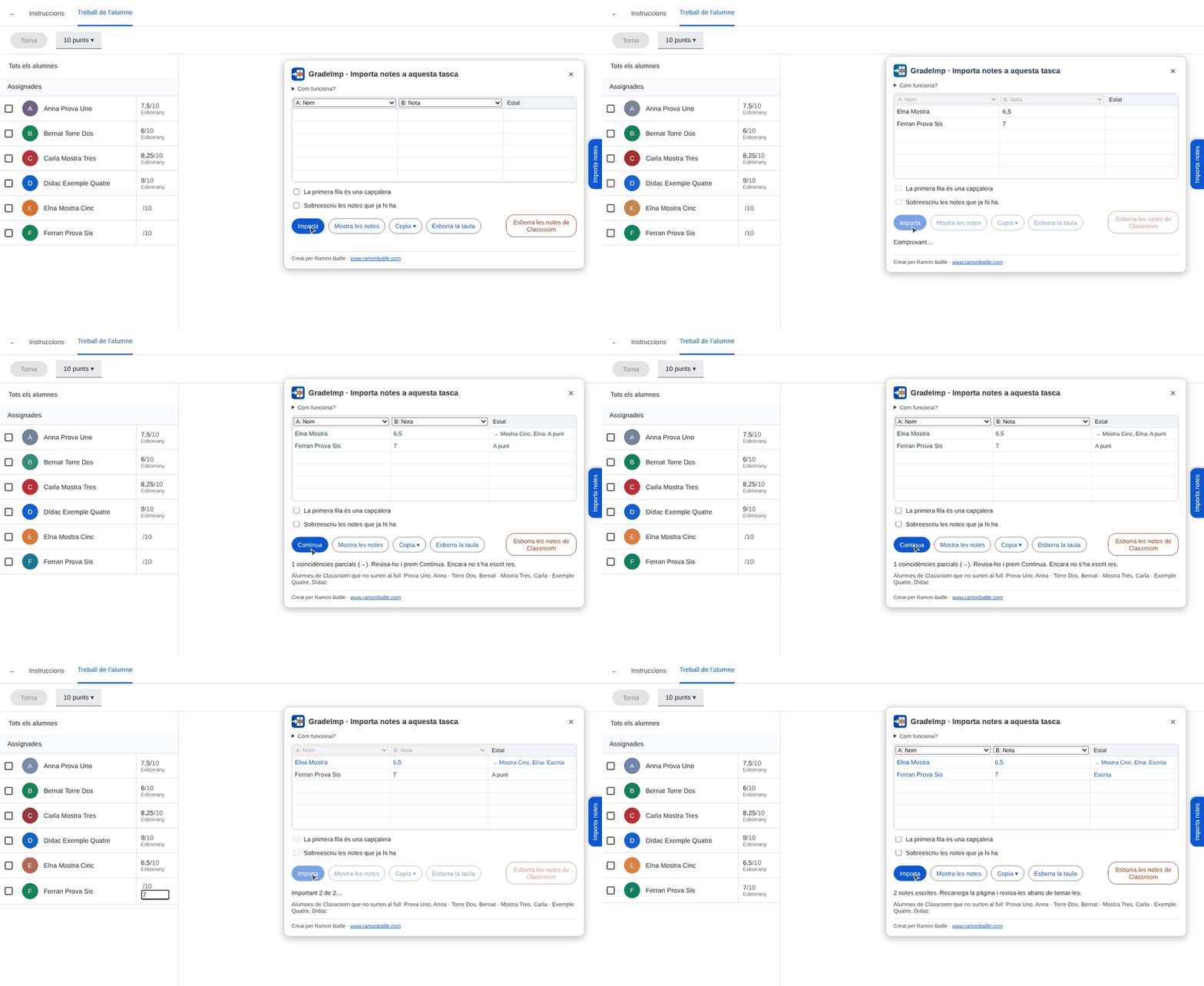
Names don’t have to match Classroom exactly: they can be in a different order, without accents or without a surname.
When a match isn’t exact, the extension stops before writing anything and shows you which student it has assigned to each line. If everything is correct, press Continue.
👁❗️ If a name could belong to more than one student, it doesn’t enter that grade and marks it as an error.
2.5. See and copy the grades
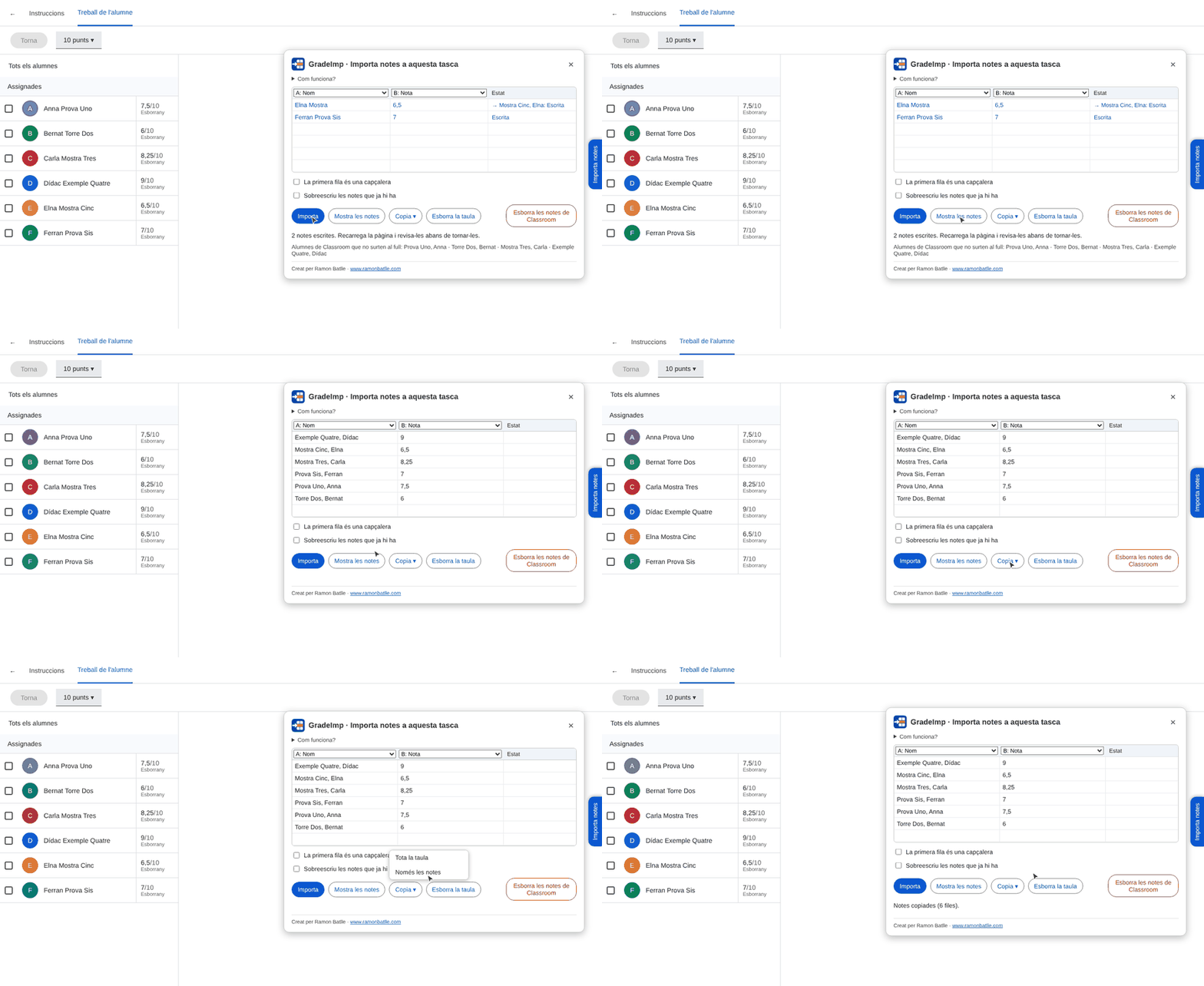
The Show grades button fills the table with the assignment’s students and their grades, sorted by surname.
With Copy you can copy the Whole table or Grades only and paste it into your spreadsheet.
👁❗️ If you copy grades only, check that the order of the students matches your sheet.
2.6. Clear grades
There are two different buttons:
- Clear the table only empties the extension’s table, without touching Classroom.
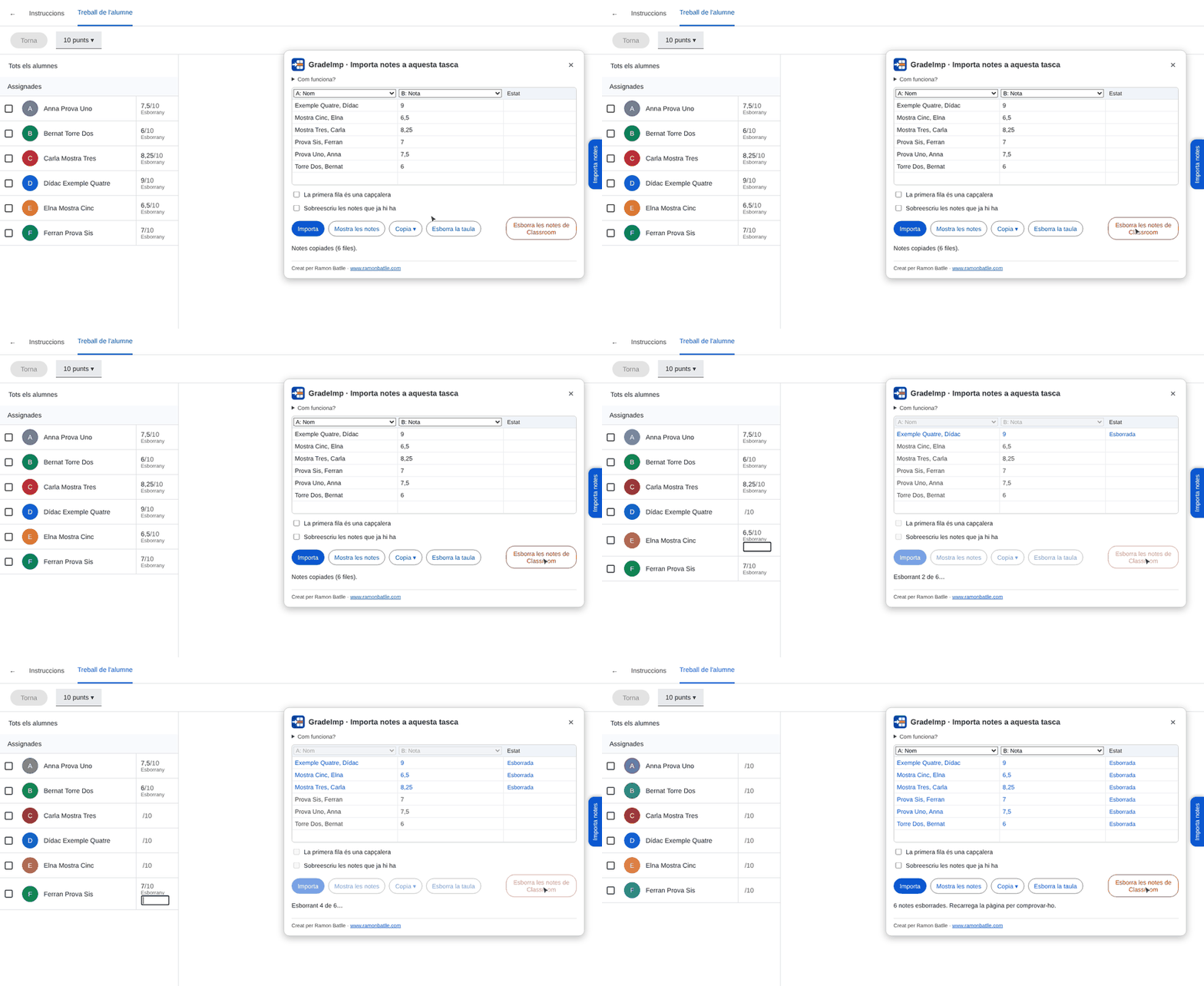
- Clear grades in Classroom removes the grades from the open assignment. It asks for confirmation first.
Cleared grades stay in the table in case you want to copy them or import them again, until you reload the page or switch assignment.
3. Limitations
GradeImp writes directly on the Classroom page, just as you would by hand, without using Google’s API. This is what lets it work with assignments created in Classroom, but it also means it may stop working if Google changes the page.
So always review the grades before returning them. GradeImp is not an official Google tool.
4. Personal data
The extension reads the names and grades from the open assignment and uses them only in your browser. It doesn’t send them to me or to third parties, and it doesn’t store them.
If you have any questions, you can read the privacy policy.
5. Final thoughts
That’s all for today. If you use it, leave me a comment: I’d love to know whether it’s useful and, if you find a bug or think of an improvement, let me know.
See you next time! 👋