
I have created La Ruta de la X (“The Route of X”), a web game for practising linear equations with Year 8 students (2nd year of ESO in Spain, ages 13–14). Each student has a passport and travels from Reus, in Catalonia, all the way to Japan, passing an equations check at every border.
The unit combines two methodologies. On the one hand, the flipped classroom: students watch the videos and practise at home or in class, and they sit each border check when they feel ready. This way everyone moves at their own pace, which for me is the best way to cater for diversity. And since I don’t lecture, while they practise I have time to answer questions and to work closely with the students who are struggling most.
On the other, gamification. The journey, the passport and the badges give the unit a story and make progress visible: every level passed is a new stamp. And, as in a video game, mistakes are not penalised; you simply try again until you get it.
I don’t think every topic can be taught this way. For me, the key is to combine methodologies and find the one that best suits each topic. Linear equations are a particularly good fit: they have a very clear progression in difficulty, they need a lot of practice, and each student needs a different amount of time to consolidate each step.
🎮 At the end of the article you can try a demo of the game and the teacher panel (the demo is in Catalan).
1. The first version: Google Forms + formMule + Edpuzzle
For several years now I have taught the equations unit to my Year 8 students as a simulated video game built with Google tools. Each level followed three steps: the student watched the explanatory video on Edpuzzle, practised with a booklet of exercises and, when they felt ready, completed the level’s Google Form.
The questions used response validation, which only accepted the correct answer, so students could retry each equation as many times as they needed until they got it right. When they finished, they automatically received an email (sent with formMule) with the level badge and the link to the next form. They pasted the badge into their passport, a Google Slides presentation.
It always worked very well, but it had two problems. The first was copying: since the forms were the same for everyone, it was easy for students to share answers, even though they did their working in a booklet that stayed in class. The second was the videos: I had to check by hand whether they had watched them, and some students took the checks without having watched the theory, so I had to remind them to do so.
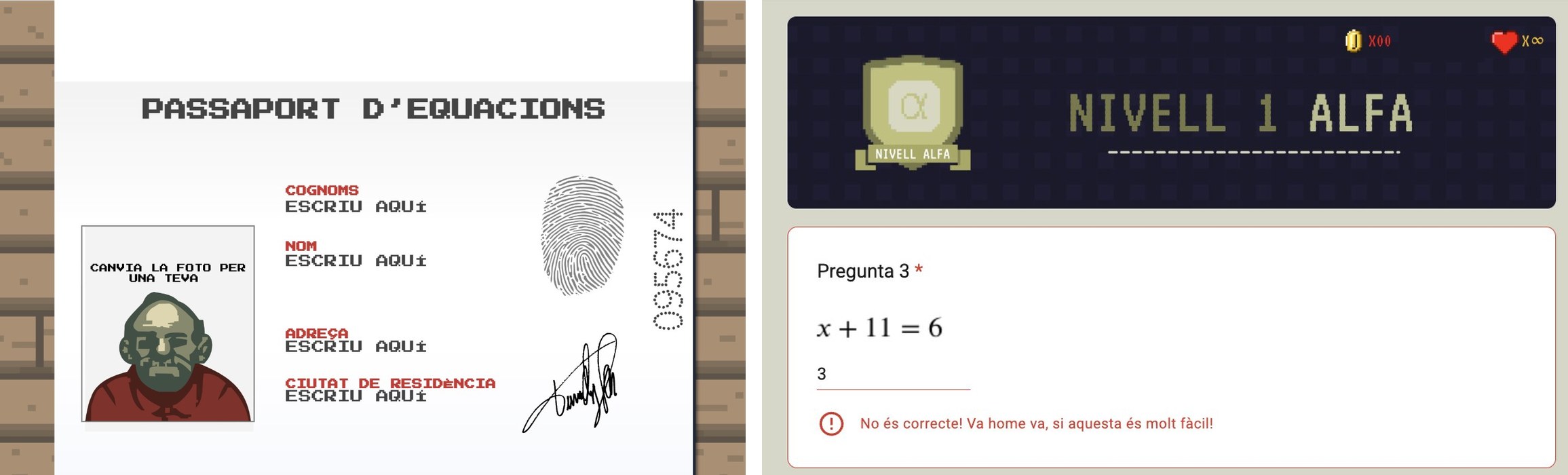
This year I have made the leap to a real game. It keeps the same way of working, but every check is different, the checks and the route can be adapted for students who need it and, from a dashboard, you can see where every student is at any time. And because everything is on the same platform, a country’s check does not open until its video has been watched.
2. The student’s environment
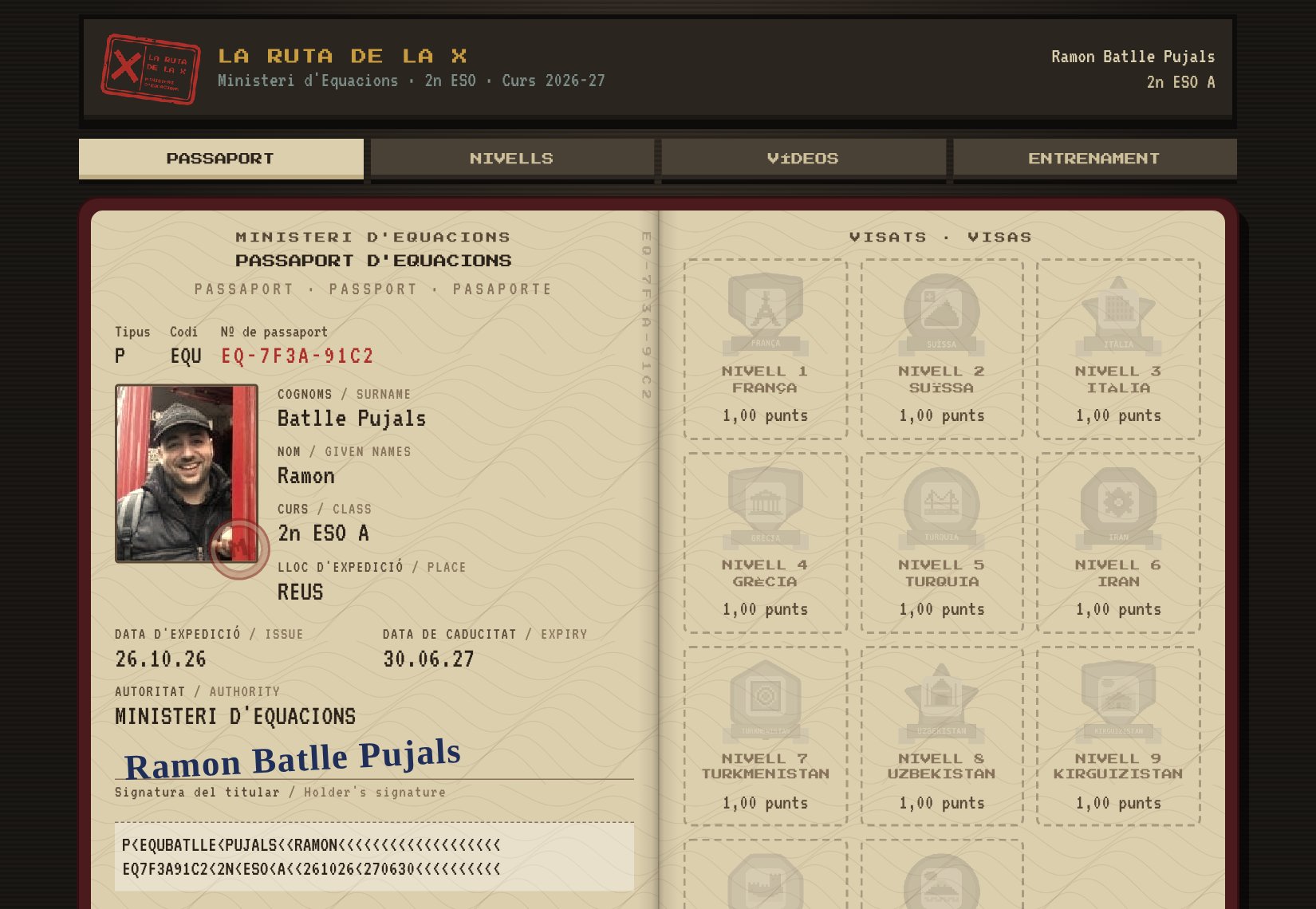
Students log in with their school account and, on the first day, register with their first name, surname and class. The game issues them a passport with its own number, and they can add a photo. From then on, the whole game revolves around this document.
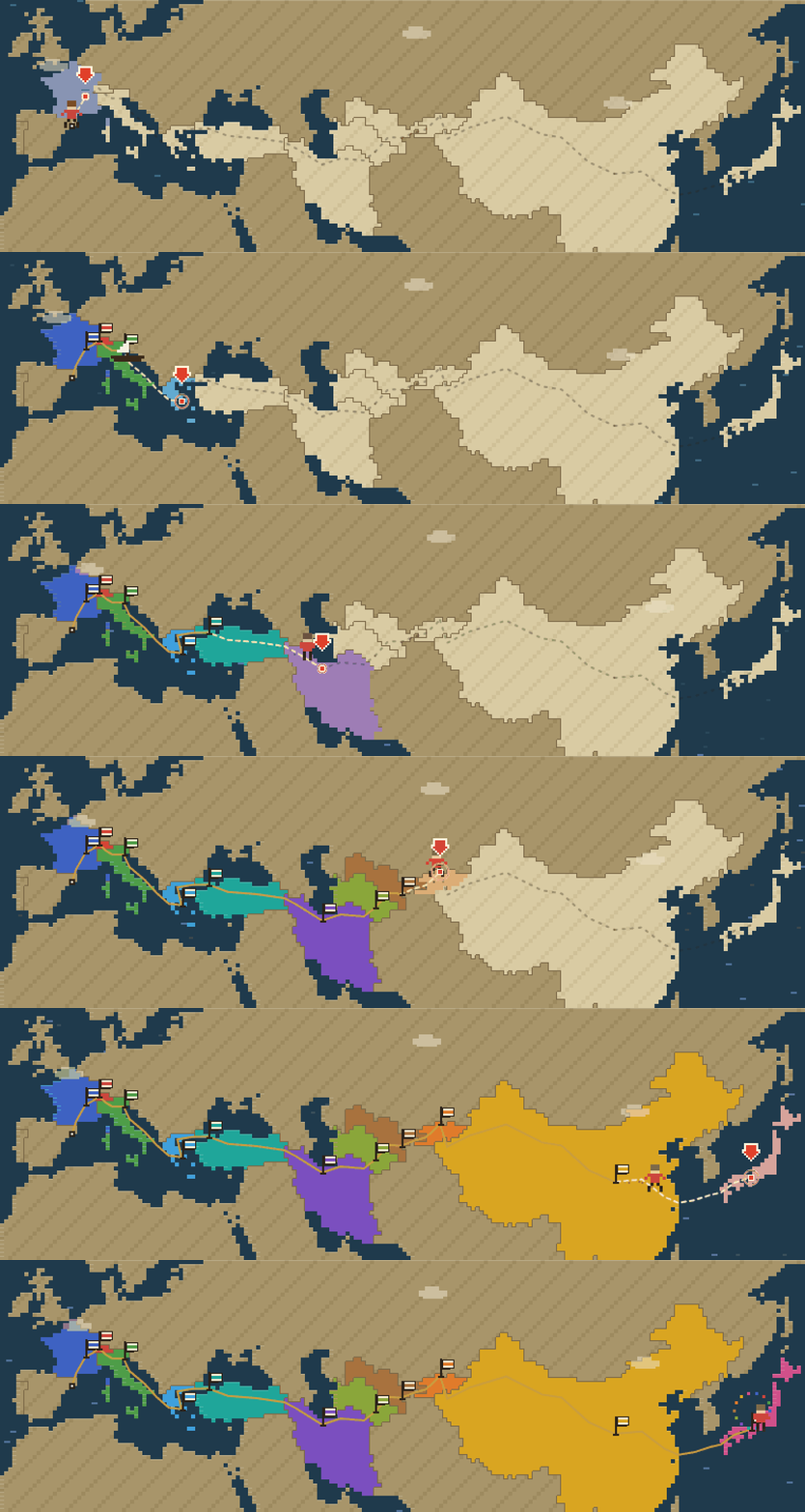
The right-hand page of the passport has a space for each visa. Every time a student passes a country, the visa is stamped with the date and the country’s badge. Below the passport, a map shows the route so far, the last stamp earned and the next destination. At a glance, students can see where they are and how far they still have to go to reach Japan.
From the top menu, students can reach everything they need: Passport, Levels (the status of each border), Videos and Training.
2.1. The route
The route has 11 countries, each with a type of equation or word problem, in increasing order of difficulty. The first ten countries are worth 1 point each, so the mark for the unit comes straight from the journey. Japan is a bonus level: quadratic and biquadratic equations are not part of the Year 8 curriculum but of later years, and anyone who reaches it and passes it scores 10.5 out of 10.
2.2. Border checks
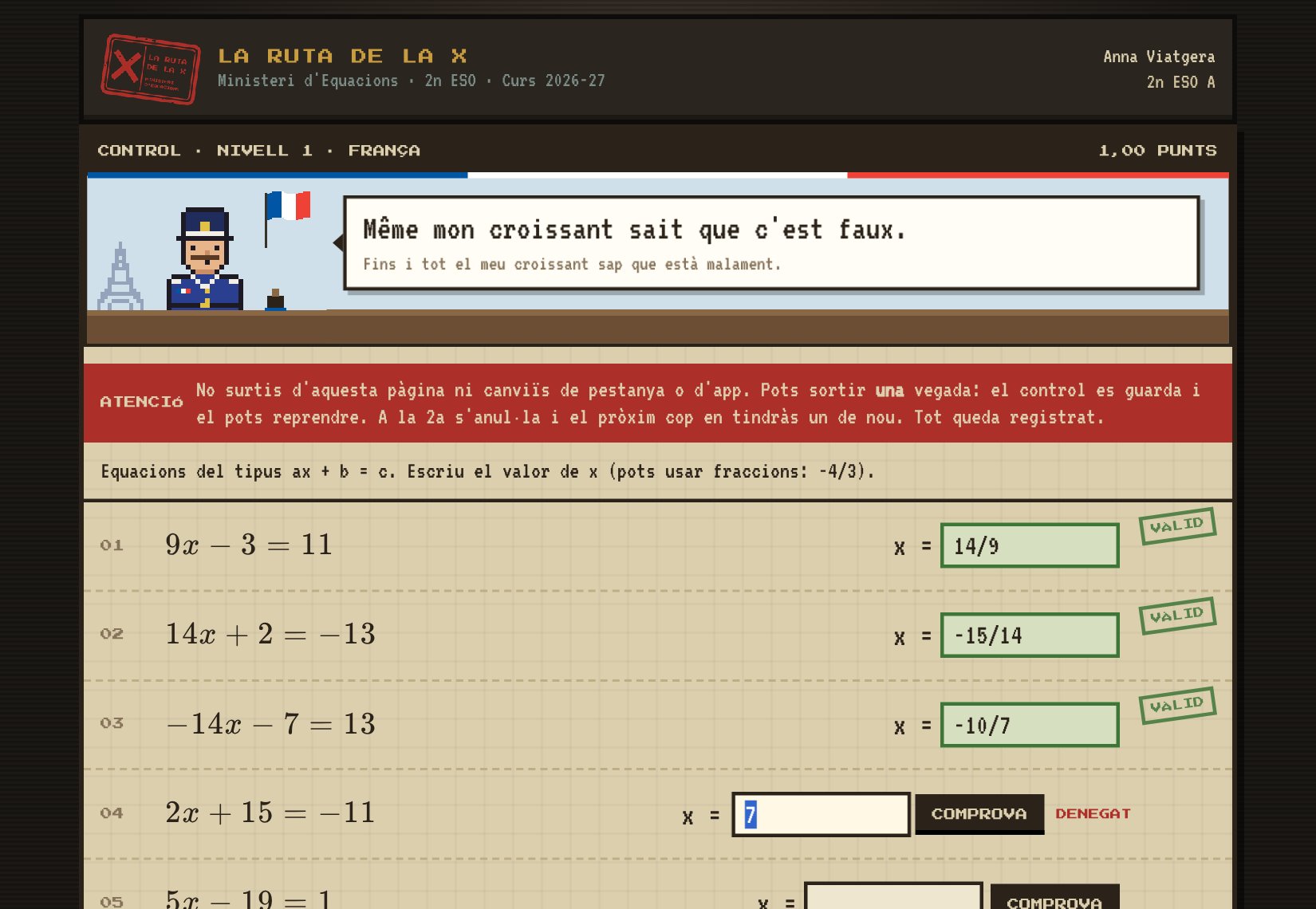
To pass a country, students sit a check in class in front of that border’s guard. Every check is different: the equations are randomly generated, so students can’t copy from each other.
- Each answer is checked instantly. If it is wrong, the guard says so and the student can try again.
- Each student has a blank booklet, with a space for each level, where they do all the working for the checks. In the game they only type the result. The teacher keeps the booklets: students ask for theirs when they sit a check and hand it back when they finish. This way the teacher can see the working for every check and review how each answer was reached.
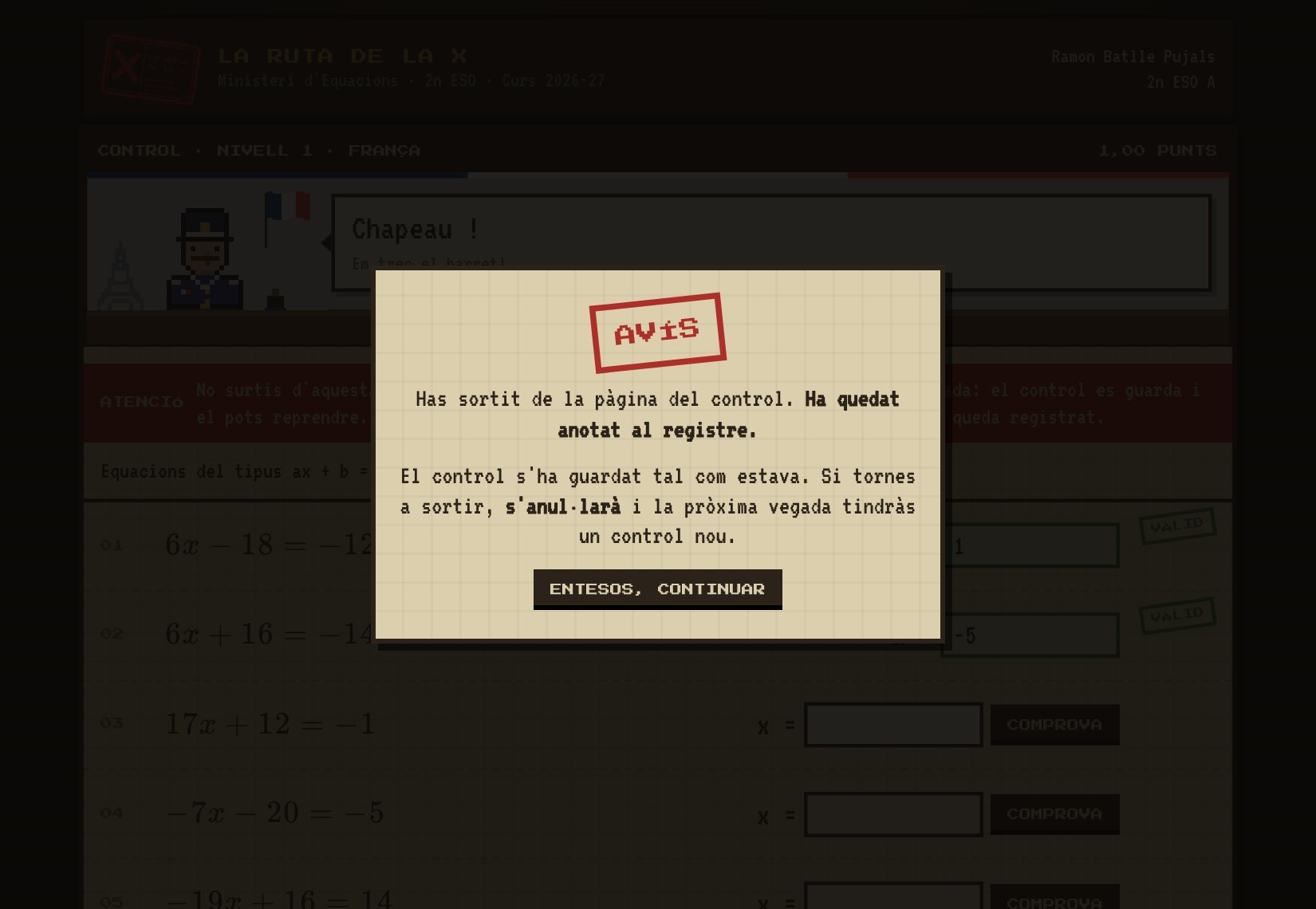
- If a student leaves the page, switches tabs or quits during a check, the first time they get a warning and the check is saved as it was. The second time, the check is cancelled and next time they will get a new one.
I hesitated over this last point. Cancelling the check the first time a student leaves would be safer, because a student could write the equations down, take them home and solve them, for example, with AI. In the end I decided against it. Lessons often end with a student halfway through a check, and this way they can close it, the answers they have already got right are saved, and the next day they pick up where they left off without starting again. In any case, the teacher panel shows which students often leave checks, and if someone does it repeatedly, you can talk to them.
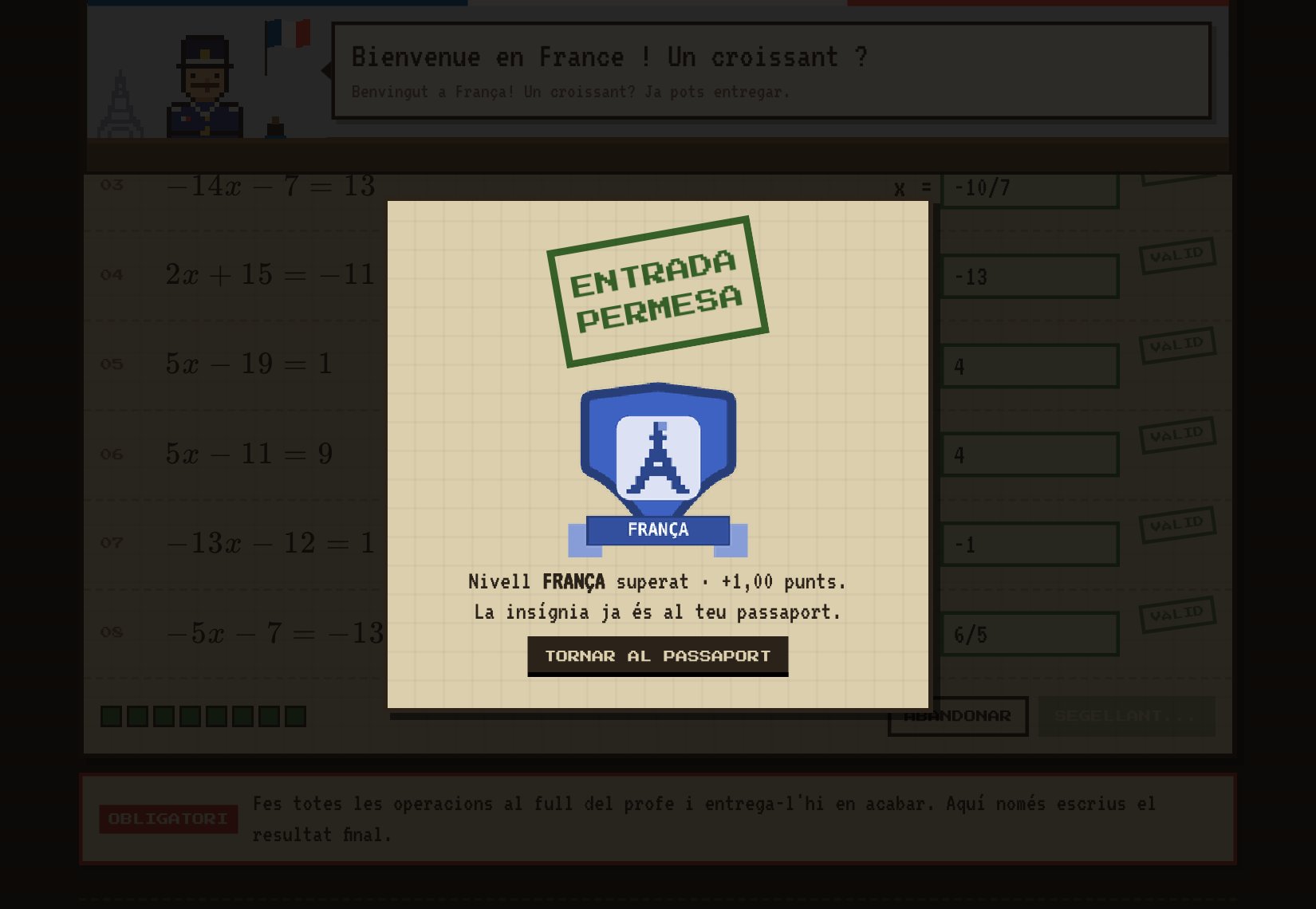
When students get the whole check right, they submit it: the guard stamps the visa and they earn the country’s badge, which is added to their passport. From then on, the next country is unlocked, although they can only sit it once they have watched its video and the teacher has opened the border from the panel, which is normally during lessons.
2.3. Videos
Each level has an explanatory video that students watch inside the game itself. I used to rely on Edpuzzle to check that they watched them, but now everything happens on the same platform, without switching websites.
The game records which parts of the video each student has actually watched. If they try to skip ahead, the video automatically jumps back to where they were. They can, however, go back as many times as they like to review an explanation. And if they close the video halfway through, next time it resumes where they left off. In the videos tab, each country shows the percentage watched.
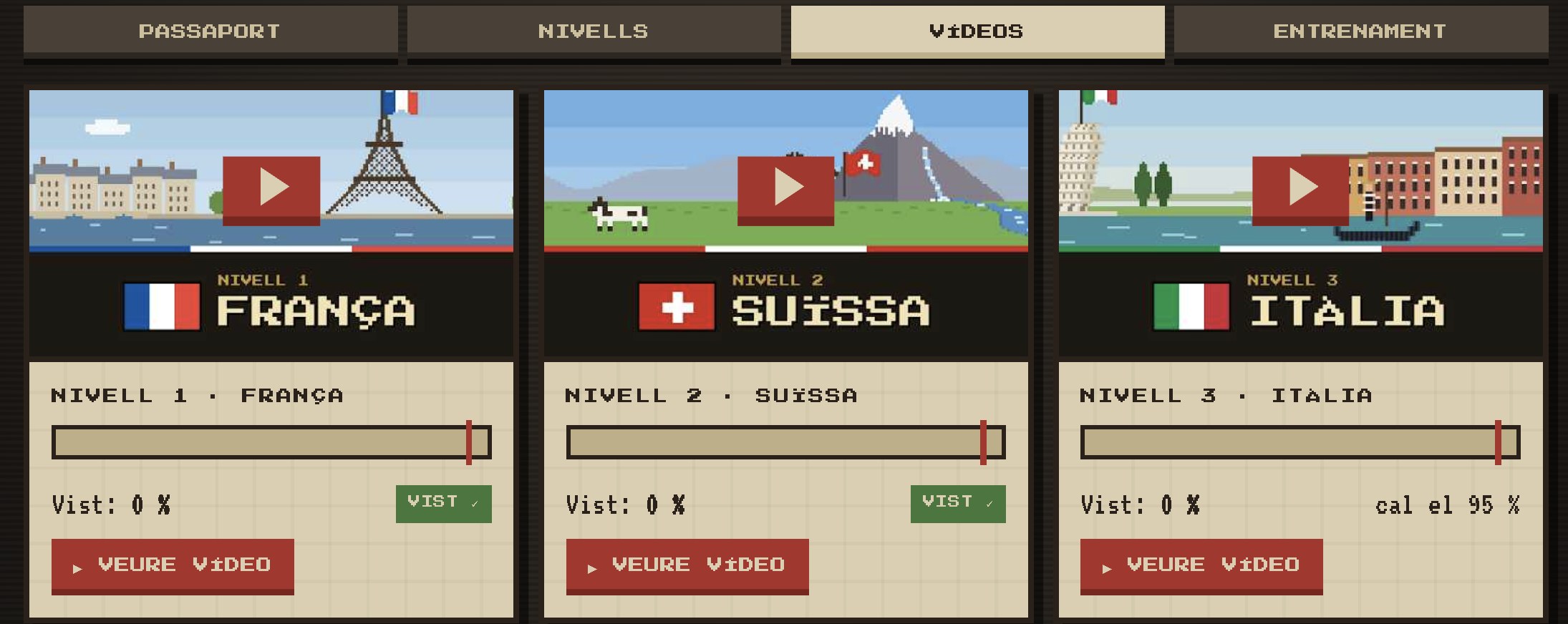
Until a student has watched at least 90% of it, that country’s border check does not open for them. The minimum percentage can be changed. The videos are unlisted on YouTube, but from the game’s player students can open them directly on YouTube. If someone does this by mistake and watches it there instead of on the platform, the game doesn’t count it. In that case, the video can be validated manually from the student’s profile in the teacher panel.
2.4. Training zone
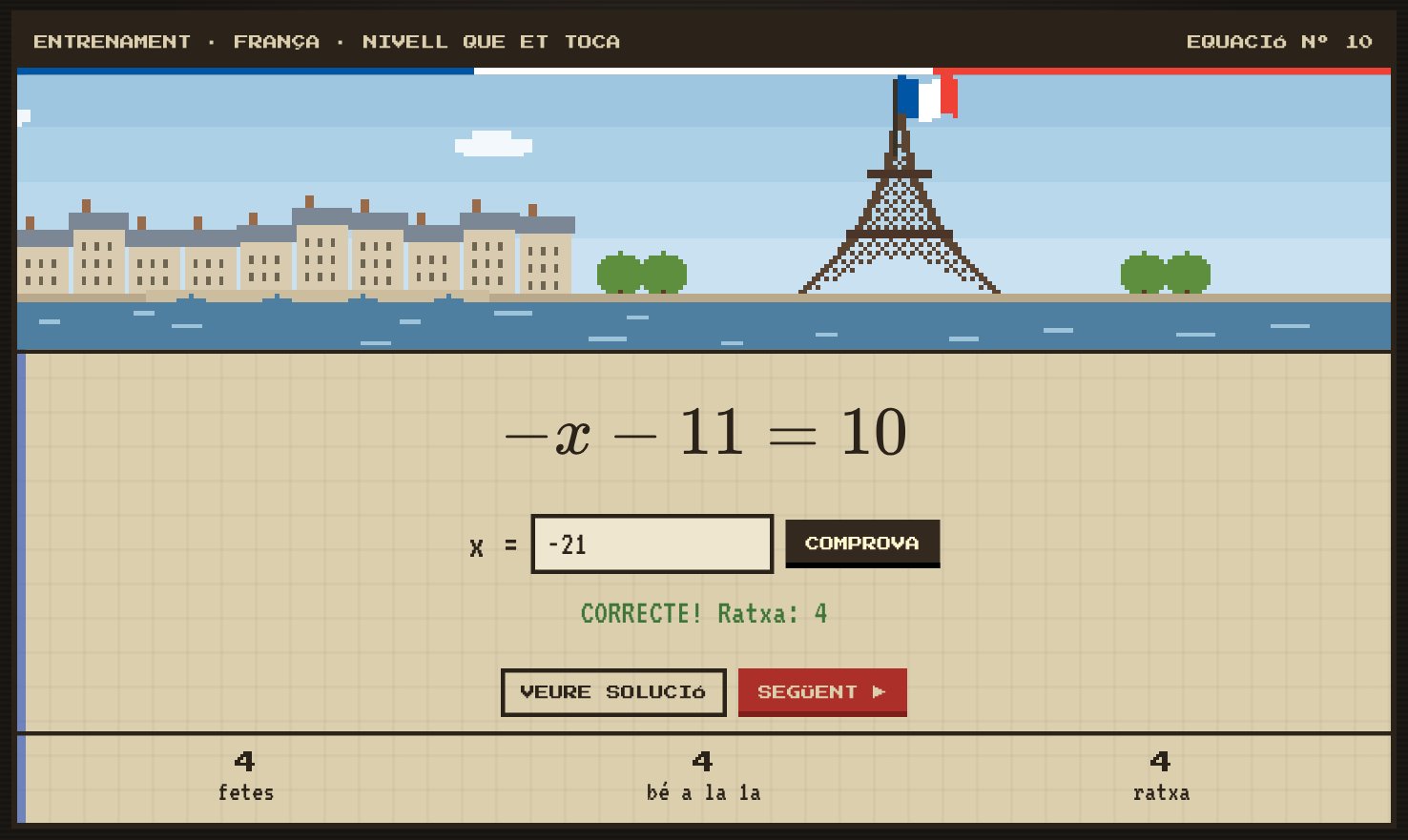
In the training zone, students can practise as many equations as they like from any country. It doesn’t count towards their mark, but the game keeps track of how many they have done, how many they got right first time and their streak: consecutive correct answers on the first attempt without looking at the solution. A mistake, or looking at the solution, resets it to zero.
Equations solved without looking at the solution are saved and don’t come up again, so students always practise new ones. Once they have solved them all, the list starts again. The number of training exercises each student completes also appears in the teacher panel.
2.5. End of season
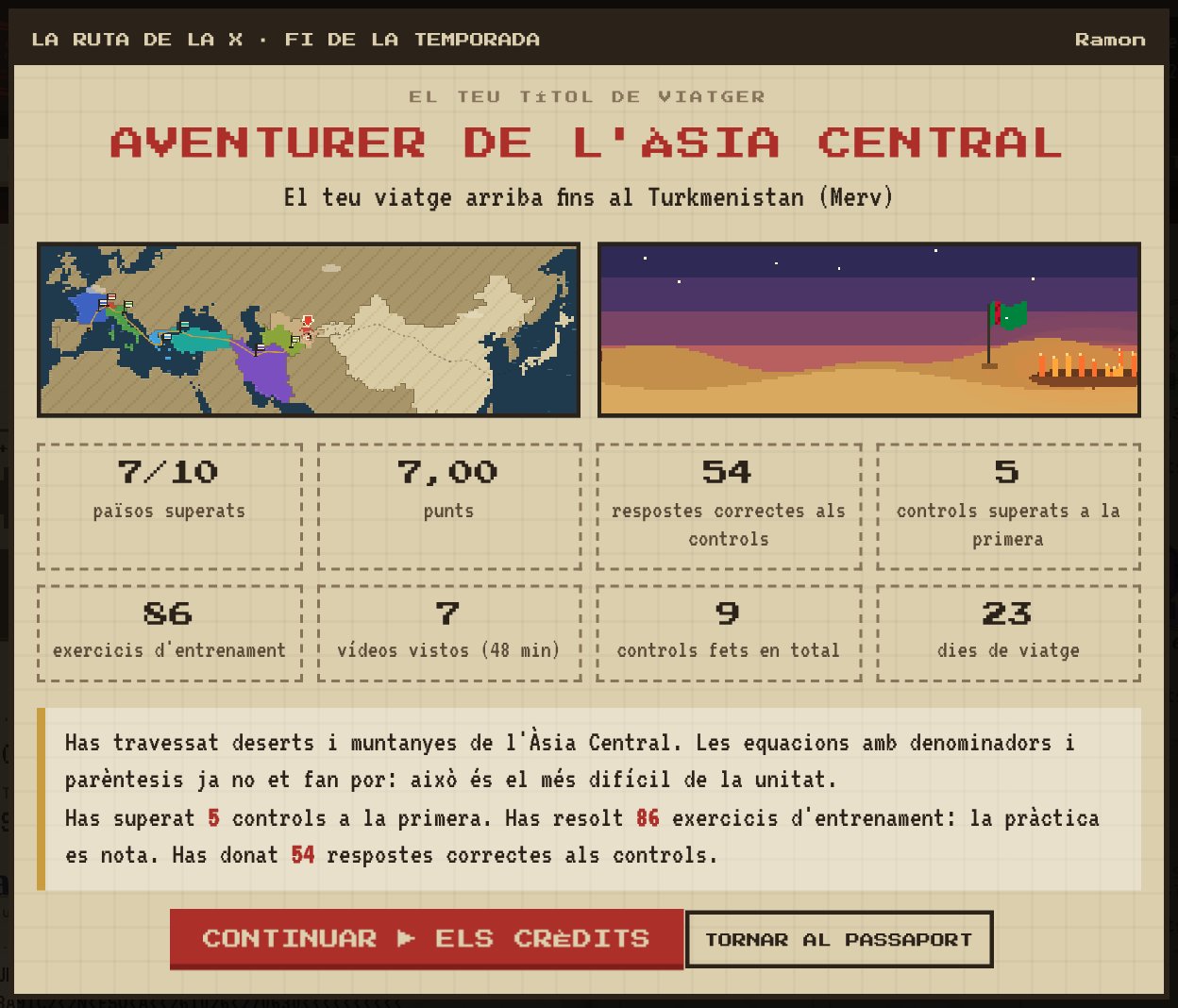
When the unit ends, the season is closed from the panel, for a specific group or for everyone. From that moment no more checks can be taken, and the next time students open the game they see a summary of their whole journey.
The summary gives them a traveller title depending on how far they got, from “Traveller about to set off” up to equations expert, and shows them the map of their route. It also shows their figures for the unit:
- countries passed and points earned;
- correct answers and checks passed at the first attempt;
- training exercises solved and videos watched;
- total checks taken and days of travel.
At the end there is a personalised message highlighting what they did well, followed by the game credits. If needed, the season can be reopened from the panel.
Students can also download their passport as a PDF, with all the visas stamped, and hand it in, for example, on Google Classroom. It isn’t essential, though, because the marks for the whole group can be exported to a spreadsheet from the teacher panel.
3. Adaptations: Support and PI
I wanted everyone to be able to make the journey. That’s why an adaptation can be assigned to a student from their profile in the teacher panel. The game never tells students that they have one or labels them in any way: their journey simply works differently.
- Support: checks have around 70% of the questions. The easier questions come first and, at the end, a couple from the standard level. Each question has a hint button showing the first concrete step to solve it.
- Individual plan (PI, similar to an IEP): like Support, but the route is shorter. It ends in Turkey, with 5 countries worth 2 points each, and Iran is the bonus level. The map and the ending of the game adapt to this route.
The panel records how many hints each student has used, and the points for the PI route can be adjusted separately.
4. The teacher panel
The whole game is managed from a teacher panel, with the same visual style as the game. Only teachers can access it, and it works on any device. Everything that had to be checked by hand with the forms version (who has watched the video, who has passed each level, who leaves checks) can now be seen at a glance.
At the very top there is a group selector: you can see everything together or filter by class, and the filter applies to every tab. The panel has three tabs: Game control, Live and Tracking.
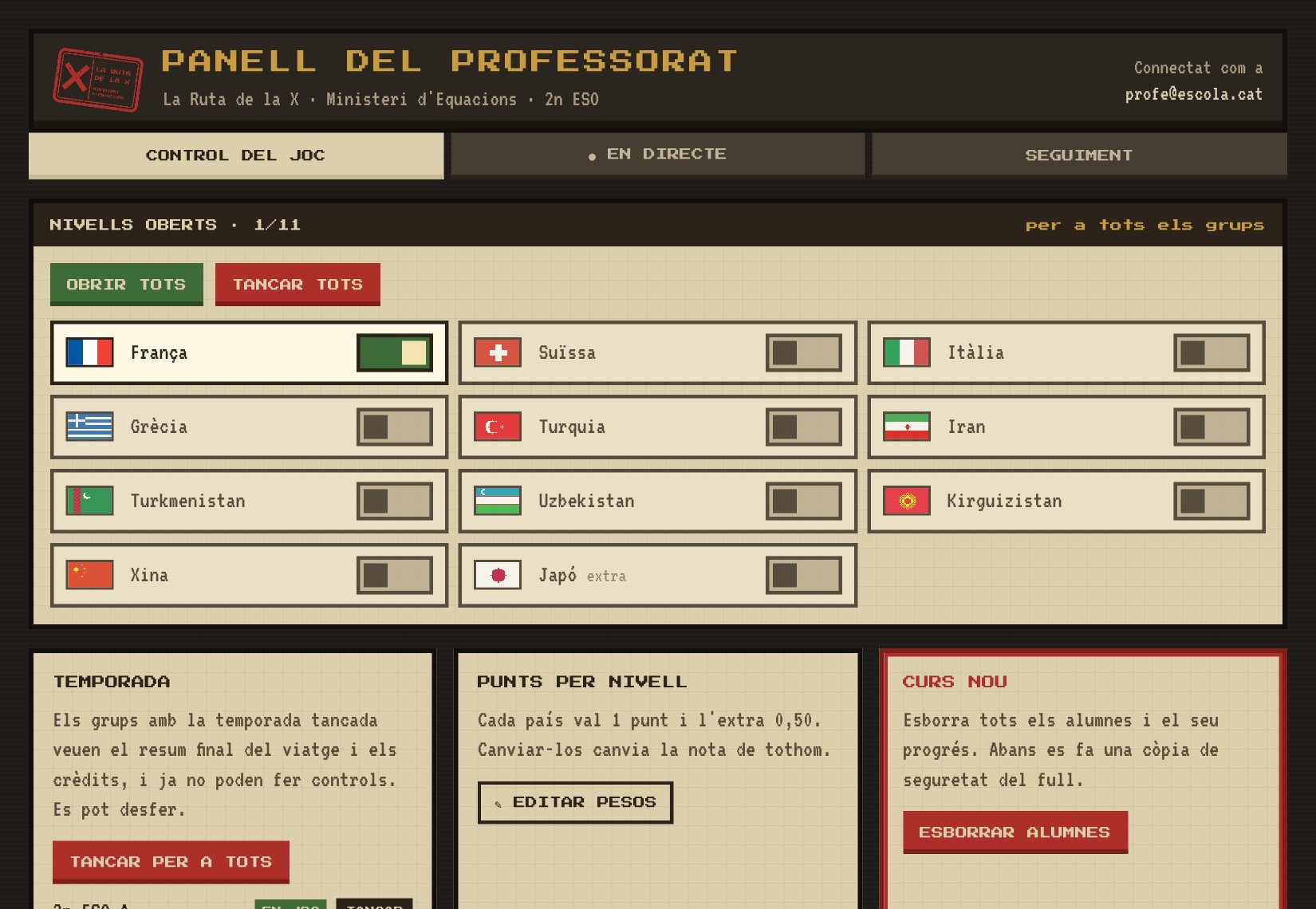
4.1. Game control
This is the tab where the game is configured. From here you can:
- Open and close the borders of each country with a switch, or all at once. This decides how far students can go at each point in the unit.
- Close the season for a specific group or for everyone when the unit ends, and reopen it if needed.
- Change the points for each country, for both the standard route and the PI route. Since this changes everyone’s marks, it is protected by an edit button and a confirmation.
- Start a new school year: this deletes all students and their progress. It makes a backup first and, to avoid accidents, you have to type ESBORRAR (“delete” in Catalan) to confirm.
4.2. Live
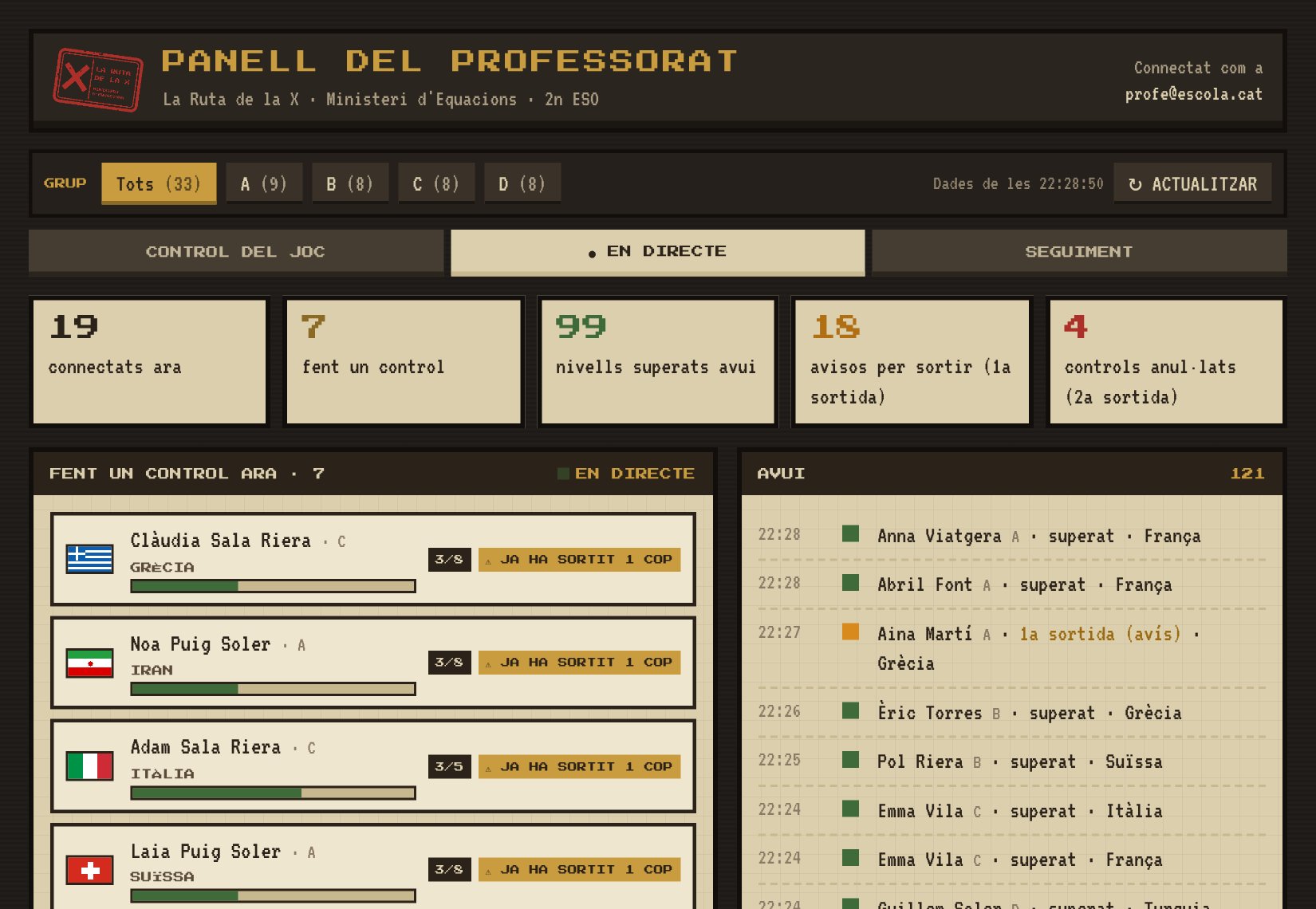
This is the tab designed to keep open during lessons. At the top there are five counters: students online, students taking a check, levels passed today, warnings for leaving the page and cancelled checks.
Below, every check in progress is shown: the student, their group, the country and a bar with the correct answers so far. If they have already left the page once, they are flagged, so you know who to keep an eye on.
Next to it is today’s log, with the time of every level passed, every warning and every cancelled check. The tab refreshes automatically every 20 seconds.
4.3. Tracking
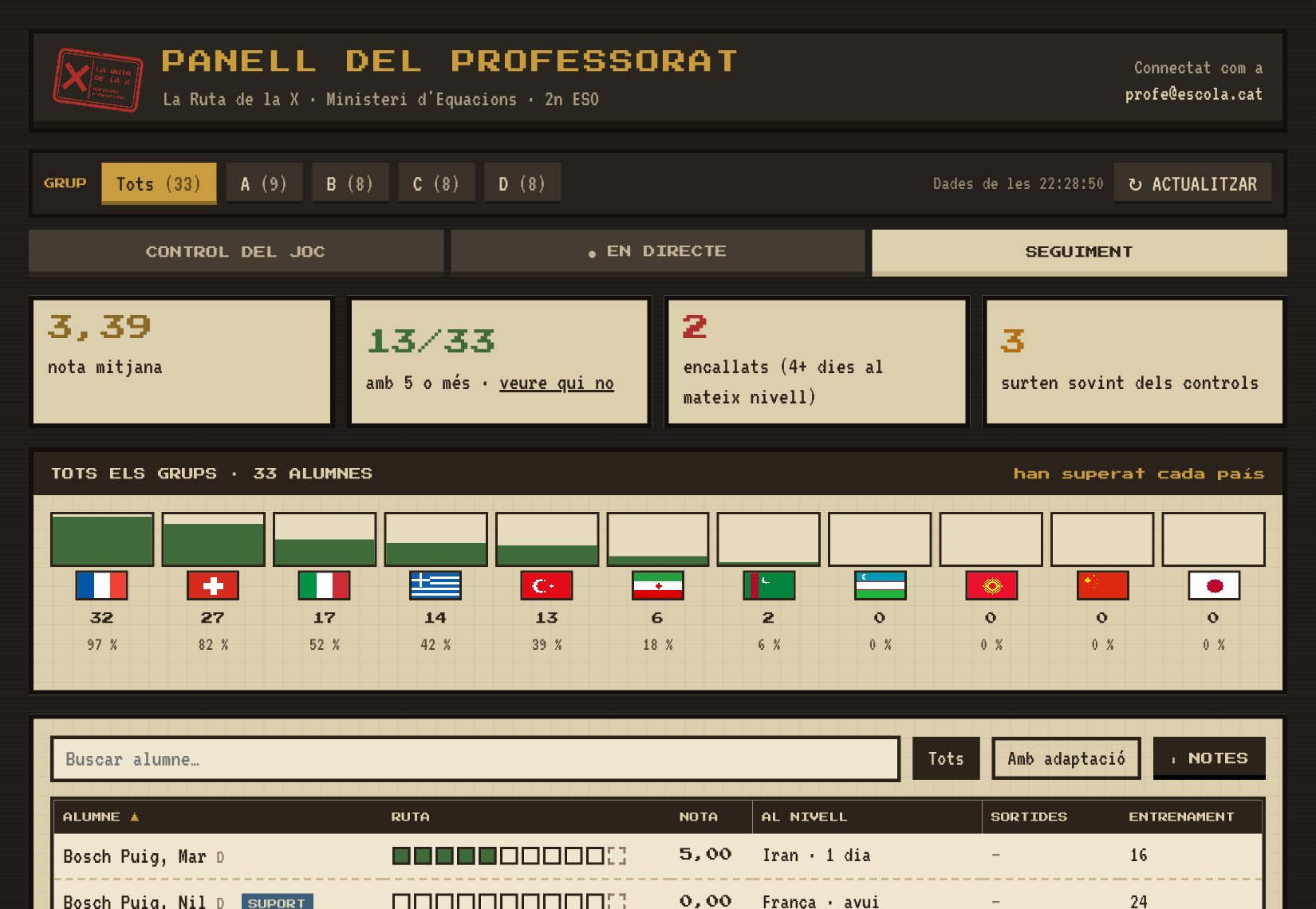
This gives the whole-group view. It has four counters, which also work as filters: the average mark, how many students have 5 or more, who has been stuck on the same level for 4 days or more and who often leaves checks.
A chart shows how many students have passed each country, and what percentage that is. Below, a table with every student: their route so far, their mark, the level they are on and how many days they have been there, check exits and training exercises. It can be sorted by any column, searched by student or filtered to show only students with an adaptation.
The Notes button creates a spreadsheet with the group’s marks, ready to be entered.
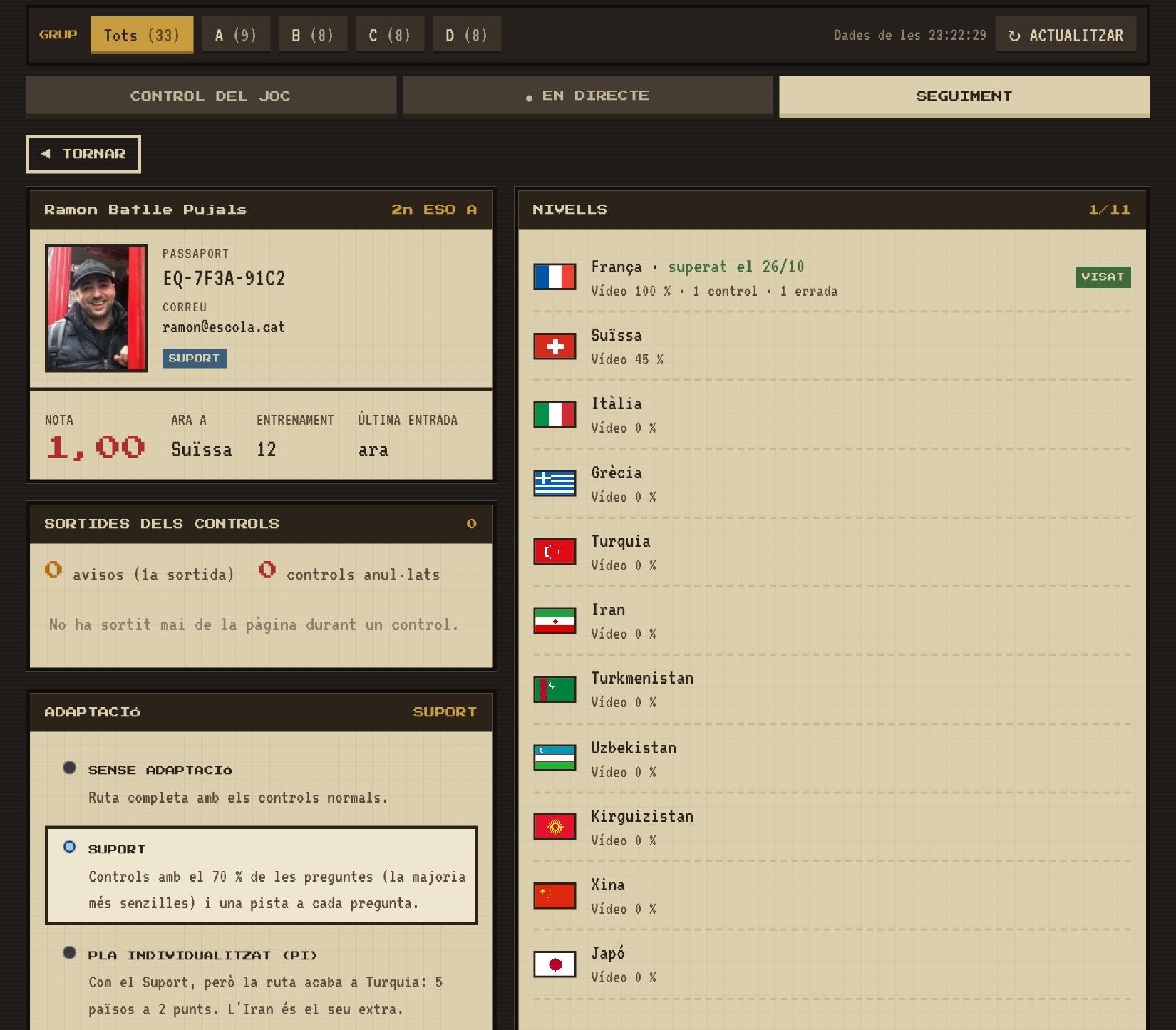
Clicking on a student opens their profile: their passport photo and number, their mark, where they are now, how many training exercises they have done and when they last logged in.
There is a section with the history of check exits, with the date and country of each, highlighted in red if the student leaves often. Next to it, the details of each level: when it was passed, the percentage of the video watched, checks taken, mistakes, exits and hints used.
From the profile you can also validate a video manually (and undo the validation) and assign an adaptation.
5. Try the demo
Below you can play the France level and explore the teacher panel with a made-up class of 32 students. Register with any name, take the check and then switch to the panel tab: you will appear as one more student. The demo is in Catalan, the language I use in class.
From the panel you can close France, give yourself an adaptation or close your group’s season, and when you go back to the game you will see the change. Nothing is stored outside your browser.
6. Final thoughts
This new version is being launched this school year (2026-27) with Year 8. After so many years with the forms version, I’m looking forward to seeing how it works in the classroom, and I’m sure it will show me things to improve.
Once the game has been used in class, I will update this article with real data: how far students get, how many checks they take, how they use the training zone and how the adaptations work.
If you have any ideas or suggestions, leave me a comment. I’d love to hear what you think.
La Ruta de la X is a game conceived, designed and created by Ramon Batlle Pujals. © All rights reserved.